KULG Planner
Written By KULG App
Last updated About 19 hours ago
Coach (subscriber)
The KULG Planner is a coach-only paid feature that simplifies the creation, editing and sharing of weekly training plans. It allows coaches to plan a full training week for multiple athletes and send it directly to their KULG app. The feature is available on both desktop and mobile.
Key features
With the Planner, coaches can:
Create multiple weekly plans for selected athletes, whole training groups, or all athletes who have granted them access
Add multiple workouts per day
Send plans directly to athletes’ calendars
Edit plans and send updates to athletes
Plan weeks ahead by saving future plans and sending them later
Define workout time and location (only activity type is required)
Delete unsent plans (sent plans cannot be deleted)
For athletes
Athletes can edit their plan after receiving it.
Any changes they make will not be visible in the Planner, but coaches can view them in the athlete’s Plans & goals section.
Athletes will receive notifications on the mobile app whenever a new plan is created or if an existing workout time or location is updated.
Any activities that athletes have added will not be overwritten by coach-sent plans.
How to use the Planner
Create a weekly plan
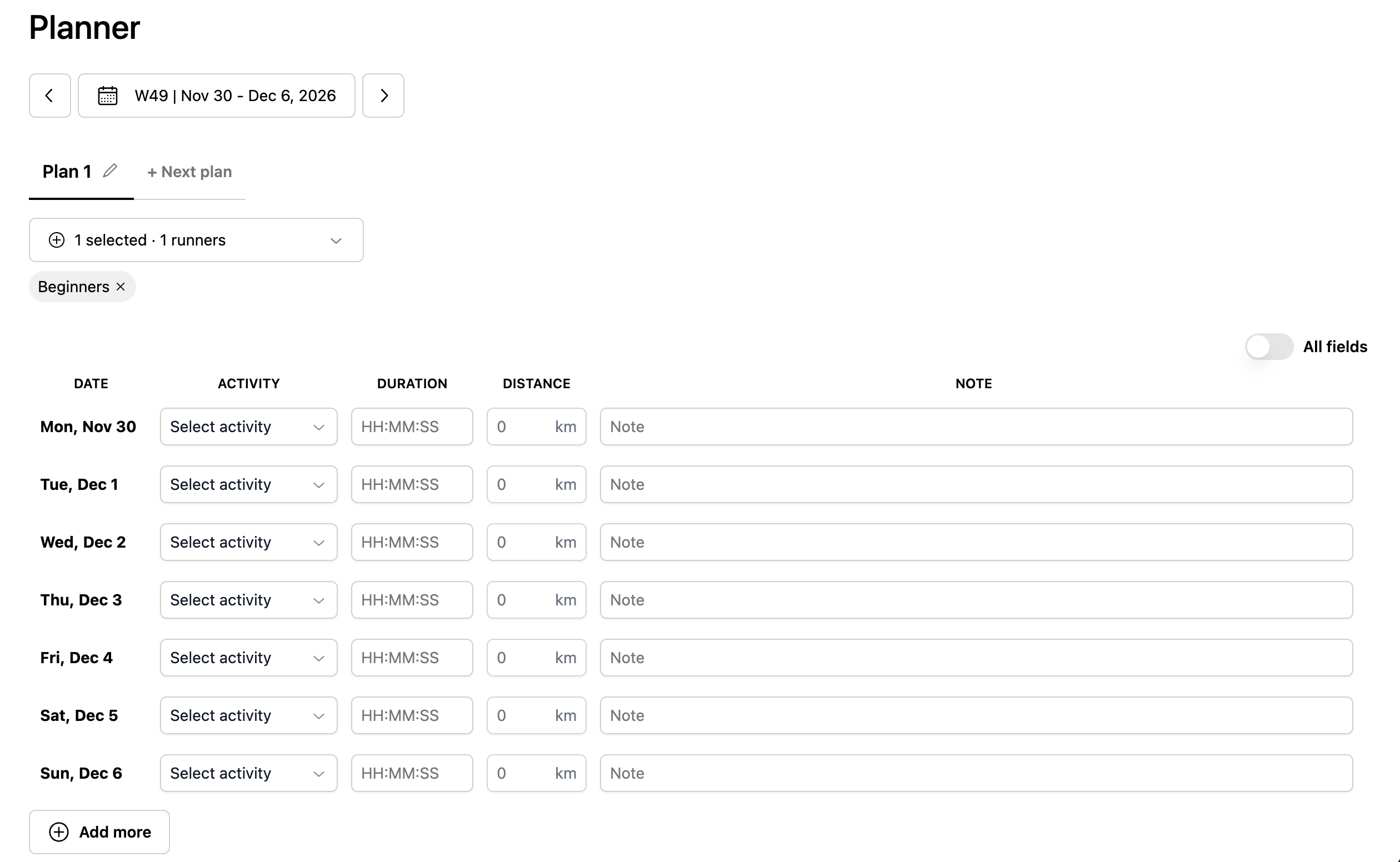
Open the Planner.
Fill in the relevant fields for each workout, leave rest days empty.
Make sure you select an activity type for each activity added.
At least one activity must be added to each plan.
To add another plan, click on + Next plan.
Select one or more groups or runners to assign the plan to. The athlete picker lists your Groups above the runners; selecting a group selects all its athletes. You can combine several groups and individual athletes in one plan, and remove any of them from the selection. (Read more about training groups)
Use the fields toggle to show more or fewer fields. It's on by default, your browser remembers your choice, and it works on desktop and mobile.
On mobile, the Planner shows one card per day. Tap + to add another plan for a date; the new plan is highlighted.
Add multiple workouts
Click + Add more to add another workout.
A date selector will open, showing the next week as the default option but you can choose between a number of next weeks.
After selecting a date, a new row will appear under the correct date.
Unfilled rows will not be saved.
Only completed workouts will be added to the plan.
Save and edit plans
Once you’ve added at least one activity, click Save.
Your plan will appear as Plan 1, Plan 2, etc., in a tabbed view. To edit, navigate to the plan, rename it and make changes.
Saving a plan doesn't change the order of the tabs. To reorder your plans, drag and drop the tabs in the order you prefer. When you switch weeks, you stay on the same plan and athletes.
Click Save plan to save edits. If you attempt to close a plan without saving, a confirmation modal will appear to confirm whether you wish to delete the plan.
Send plans to individual runners or groups
After saving, the Send plan button will become active.
Click Send plan to share it with the selected runners. It will immediately go to the Plans & goals calendar of the selected athletes.
If you've already sent that week's plan to the same athletes, KULG asks you to confirm before sending it again to avoid sending duplicate plans by accident.
The plan will appear in their Plans & goals calendar, with all fields (activity type, time, location) visible.
If you edit an already sent plan, you can make the changes, save them and choose to Send update to make the changes in the runners’ Plans & goals.
NB! Editing an existing workout will update it in the plan. Adding a new workout will add it to the previously sent plan without changing the other workouts. If you change a workout's date, it will be added to the new date but will remain on the original date. To remove it from the original date, go to the athlete's Plans & Goals and delete it there.
View sent plans
The time the plan was sent will be displayed in the upper right corner.
You can plan multiple weeks ahead, save edits, and send them later.
Copy plans
Coaches on Coach plan can quickly reuse training plans across weeks, making it even faster to send plans to athletes.
Open any saved plan, select a current or future week (next week is selected by default), and click Copy plan to copy the same plan to another week.
The copied plan opens automatically in the selected week with the same name, and you can then make changes to the plan.
Plans are saved instantly - no extra action needed. The “Send plan” button is available right away.
NB! The Copy plan option is available only for saved plans. If you have multiple plans in a single week, then Copy plan only copies one selected plan, not all of the plans.
Was this helpful?
Still need help? Ask the team