Garmin: sync activities and import training history
How to sync activities, recovery data, and import training history from Garmin
Written By KULG App
Last updated About 1 month ago
Runner (incl free)
You can connect KULG App to Garmin to sync future training activities and/ or import your training history via the integration. This will allow you to get a long-term view of your training history almost immediately.
🔗 You can connect multiple integrations and choose to enable “Workout history” with one integration (e.g. Strava) and “Activity sync” with another (e.g. Garmin). Sync activities via one integration to avoid duplicate activities. If you have already imported your training history to KULG from Strava or by file upload, make sure Garmin history import is disabled to avoid duplicate activities on your KULG account.
✏️ Making changes to your data in KULG App (e.g. correcting, deleting, etc), will not change the activity data in Garmin. If you delete the activity in Garmin, it will not delete it in KULG.
🚨 If you edit your activity in Garmin (e.g. add a comment, or edit the activity details), it will not overwrite the data in KULG. This is important to prevent you from accidentally overwriting your data in KULG.
Sync activities ☑️ Import history ☑️ | Syncing activities ✅ History import ✅ |
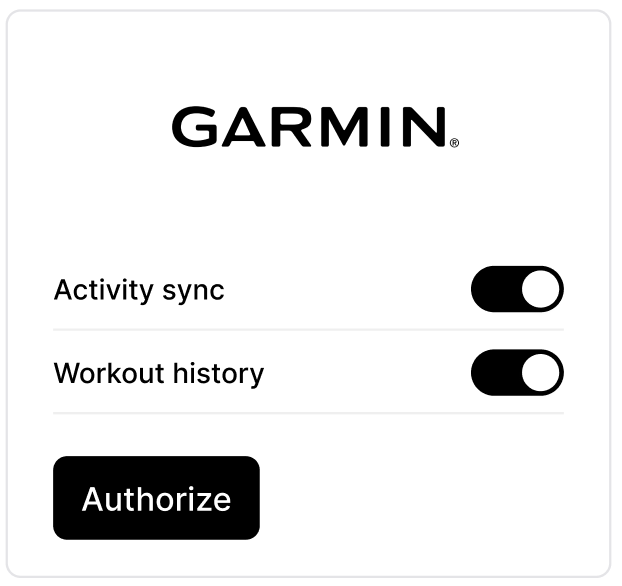 | 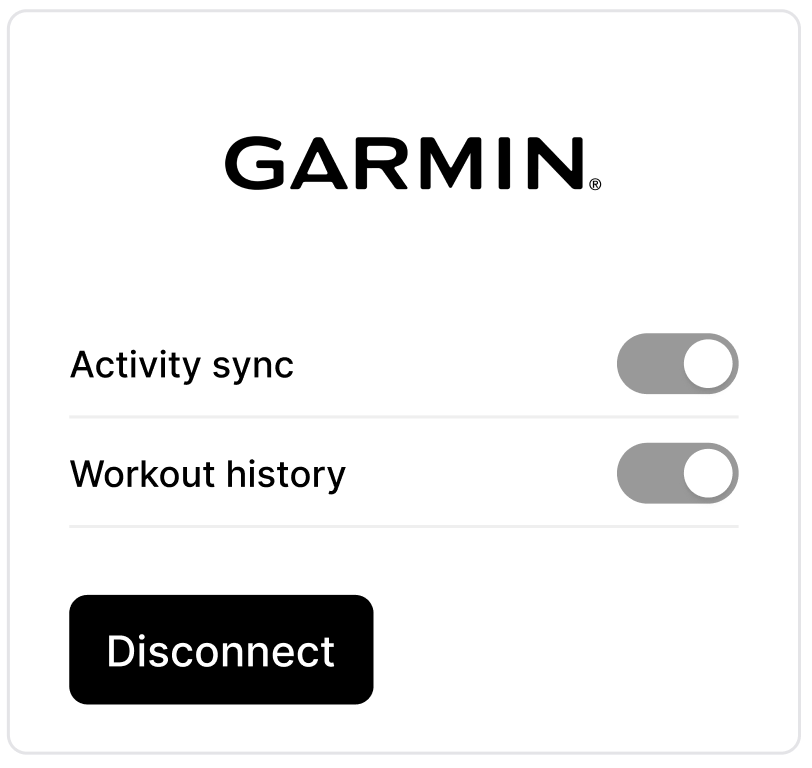 |
Syncing enabled ☑️ | Syncing disabled |
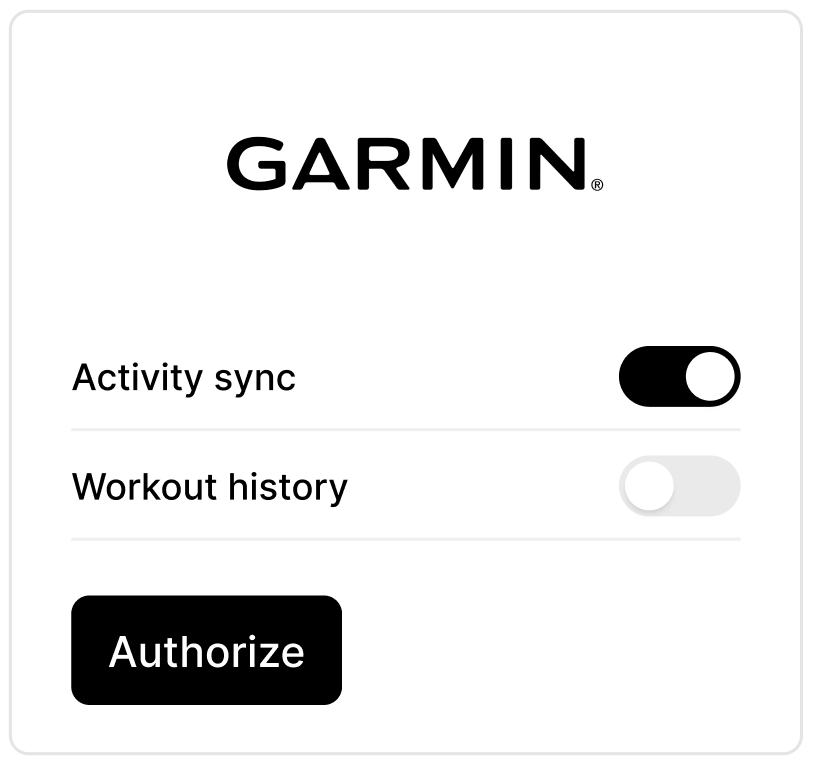 | 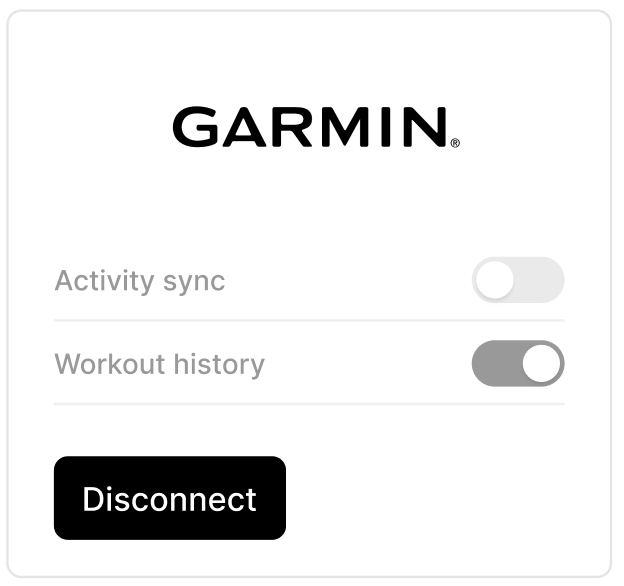 |
Syncing activities and training history from Garmin to KULG
Log in to your KULG account
Navigate to Settings in KULG App and select the Integrations tab
Choose if you would like to only sync activities from Garmin or import training history or do both - disable the option you do not wish to use by clicking on the switch
Click Authorise - if you have multiple KULG accounts, then you can connect your Garmin account to only one KULG account
Authorise Garmin and sign in with your Garmin credentials - please ensure that you’ve enabled “Activities” and “Daily Health Stats” to get more information to your KULG account
After authorising Garmin you’ll be directed back to KULG Settings page - check if your selected option(s) are dark grey and light grey if they were not selected (see above)
Your full training history in Garmin will be imported to KULG (i.e. you cannot import your training history partially) - select All time to see full history on Dashboard or Activities and refresh the page
NB! If you have a lot of activities, it may take a few hours to bring all your training history over - do not disconnect Garmin integration
🚨 When enabling Garmin history import, do not disconnect and reconnect if you are still waiting for your history to sync. It may take a few hours for your history to come over from Garmin. If you don’t see your activities in KULG, please see Troubleshooting.
New activities uploaded to Garmin app will automatically appear in your KULG account after this step - NB! If the activity is loaded from Garmin while you’re in the Activities, you’ll need to refresh the page to see the added activity
KULG automatically detects the type of run by heart rate zone, average pace and distance and catergorises it. You can categorise your runs further in KULG.
When navigating to a single activity in KULG, you’ll find a direct link to that same activity in Garmin to find further details about the activity that are not shown in KULG App (e.g. map, kudos, etc)

If you wish to sync your activities from another source or modify your settings (e.g. enable "Workout history" after initially omitting it) you'll need to click Disconnect and reconnect the KULG App to Garmin
In addition to your training data, notes are also brought to KULG App from Garmin. Garmin is not sending activity RPE and feeling to KULG.
Recovery details - resting HR, HRV, sleep score - are also brought to KULG once a day if you track your sleep with your watch. If you enable both Garmin and Oura and sleep with your watch, Oura data will be used to fill the missing resting HR, HRV, and sleep score. You can use Oura only to backfill your history, not sync your recovery data should you wish to get all data from Garmin.
Activities loaded to your Garmin from 3rd party apps (e.g. Zwift) are currently not brought over to KULG App from Garmin (you can sync these via Strava).
Tip💡
If you import your training history via Garmin integration, then the training history is imported as is and you can update your activities one by one. If you wish to make bulk changes to your data before importing the history (e.g. correct type of run, define high intensity km, etc), then you can also export your history from Strava and send us the file to upload to KULG.
Syncing recovery data from Garmin to KULG
Your recovery data (Resting HR, HRV, and Sleep Score) syncs directly from Garmin to KULG.
As long as you sleep with your Garmin watch, we’ll automatically add this data to your activities, helping you see how recovery and performance connect.
Note: Since recovery data is health data and not directly linked to a synced workout, it may not appear under your activity details immediately after uploading your run.
How KULG interprets your Garmin Sleep Score
To keep everything consistent, your Garmin sleep score is converted to the KULG 5-point scale:
This helps you easily compare recovery quality day by day and see how it aligns with your training load.
Reducing manual work for recovery data
If you track recovery with non-Garmin devices, adding values manually just got easier.
When you enter Resting HR, HRV, Sleep Score, or Feeling for one activity, those values are automatically applied to all other activities on the same day.
Updates made later (after refreshing) will also sync across all activities from that day.
This applies to activities created or synced after the release date.
You only need to log your recovery data once per day. No more repeated entries.
See your weekly progression in Planning
You’ll see a progression graph in the Planning view. This graph lets you compare your planned vs. completed running distance, duration, and high-intensity sessions: week by week or month by month.
It’s a powerful way to see how closely your training matches your plan. And your coach can follow along, too.
Troubleshooting
New activities aren’t syncing: First, ensure the “Activity sync” is connected (dark grey - see the image above). If it is, follow the next steps:
Disconnect Garmin from your KULG integration settings
Disconnect KULG from your Garmin Connect settings
Reconnect to Garmin from your KULG settings
Your activities should begin appearing within 30 minutes
Still having issues? Contact our support team at support@kulg.io
Missing activities after import or sync: First, verify connections:
Confirm "Workout history" shows as connected (appears dark grey) in KULG
Check if KULG appears under your Garmin Connect Account Information in the "Connected Apps" section
Still having issues? Contact our support team at support@kulg.io
Duplicate activities: In this case, you probably had some activities already in the KULG App before connecting your history, or you connected multiple integrations. Please contact support@kulg.io and let us know which duplicates should be removed.